Windows Embedded POSReady 7 allows you to add and remove features at any time. Feature Packages must be added while the system is offline – therefore the easiest way to do this is to boot from the POSReady 7 DVD.
Here is a short guide how to add feature packages very easily.
Alternatively you can use our free tool DISMUI to complete these steps automatically via a graphical user interface.
Add Feature Packages to POSReady 7
- Boot from the Windows Embedded POSReady 7 Setup DVD
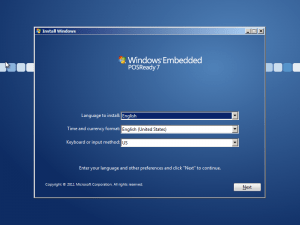
- Press Shift+F10 to open a command prompt when the language selection screen appears.
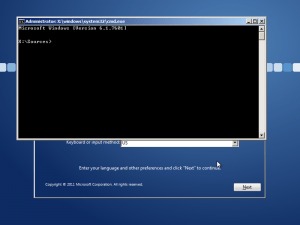
- Run *diskpart.exe*
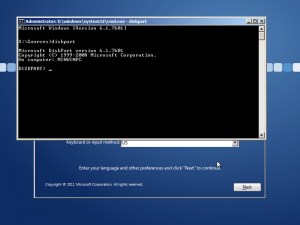
- Type the following command: *list volume
*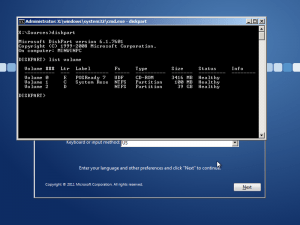
- Identify your POSReady 7 installation volume (in this sample D: ) and your POSReady 7 DVD drive (E: in this sample)
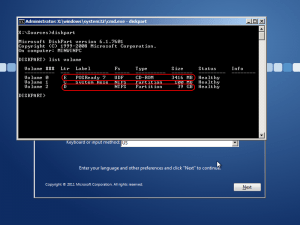
- Exit dispart by typing: *exit*
- Create a Scratch directory on your POSReady 7 installation volume by typing the following command:
*md D:\Scratch* (D: should be your POSReady 7 installation volume)
- Type the following command to add a feature package
*DISM /Image:D: /Add-Package /PackagePath:E:\DS\ /ScratchDir:D:\Scratch
*
Please replace D: by your POSReady 7 installation volume and E: with your POSReady 7 DVD drive letter.
To enter the package filename more easy you can add a blank after /PackagePath: then type E:\DS\ and press Tab until you see the correct package file name. After that remove the blank again.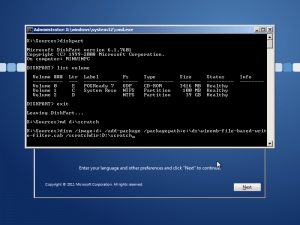
- After this the feature package will be added. Please make sure to reapply all installed language packages by using the same command as described in point 8.
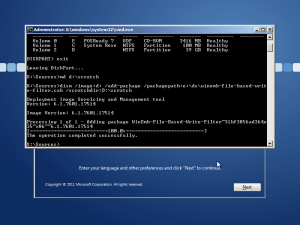
- Reboot your device to complete the installation
Remove Feature Packages from POSReady 7
Removing Feature Packages is much easier than adding them as this can be done directly in the running system.
- Open an administrative command prompt by pressing the Windows key to open the start menu.
- Type: *cmd* and press Ctrl+Shift+Enter
- Click Yes to open the command prompt.
- Type the following command to identify installed feature packages: *DISM /Online /Get-Packages*
- Insert the POSReady 7 DVD into your DVD drive
- Type the following command to remove a feature package:
*DISM /Online /Remove-Package /PackagePath:E:\DS\
*
Please replace E: with your DVD drive letter.
- Restart your device to complete the removal process.